
01
Pass spots the checkout
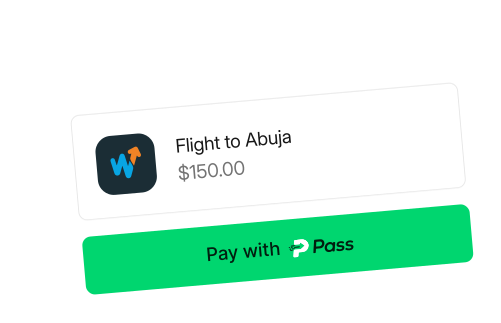
On a computer, the extension shows up on the payment page. On iPhone, share the checkout into Pass.
PASS
Stop pasting account numbers and hopping between bank apps. On a computer, the extension handles checkout. On iPhone, share a page or AutoFill your card.
Three steps. Same PIN — in the browser or on iPhone.
01
On a computer, the extension shows up on the payment page. On iPhone, share the checkout into Pass.
02
Face ID or your PIN unlocks Pass. It fills card fields, starts a transfer, or handles QR — whichever the site needs.
1.svg)
03
For card payments, tap Pay and confirm with a second PIN. Transfers and QR only need the first one.
.svg)
IPHONE
Same wallet. Built for checkouts you open on iPhone.
01
Share a payment page or screenshot into Pass. Unlock, then pay from your wallet.
02
Pick Pass from the keyboard AutoFill menu. Insert card number, expiry, CVV, or billing.
03
Top up, send money, and freeze your card from the app. Face ID keeps it locked.
Add the extension or the iPhone app, fund your wallet, set a PIN. After that, every checkout looks like this.