
1.svg)


.svg)
01
Share a checkout to pay
From Safari or any app, share the page or a screenshot into Pass. Unlock with Face ID or your passcode, then pay from your wallet.
On a computer, Pass fills checkout for you. On iPhone, share a page to pay or AutoFill your USD virtual card. Same wallet, same PIN.
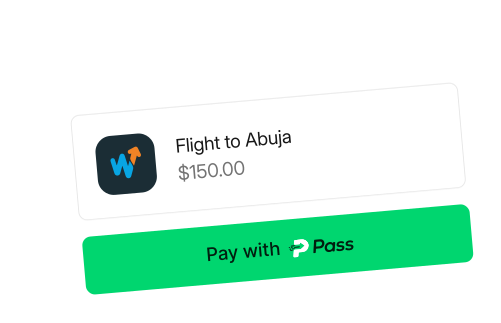
Works everywhere
you already pay

No more pasting account numbers or jumping into bank apps. Use the browser extension or the iPhone app — Pass takes you straight to pay.
01
On a computer, the extension shows up on the payment page. On iPhone, share the checkout into Pass.
02
Face ID or your PIN unlocks Pass. It fills card fields, starts a transfer, or handles QR — whichever the site needs.
03
For card payments, tap Pay and confirm with a second PIN. Transfers and QR only need the first one.
Browser, iPhone, wallet
Skip pasting account numbers and switching bank apps. Pay from the extension or the iPhone app.
On a computer, Pass shows up at checkout and gives you a one tap Pay button. On iPhone, share the page into the app instead.
.svg)
.svg)
Fund your Pass Wallet from any Nigerian bank. The extension and the iPhone app both pull from that balance — no card re-entry, no bank app hopping.
IPHONE
The iPhone app is built for checkouts you open on your phone. Share to pay, AutoFill your USD virtual card, and keep the wallet with you.
01
From Safari or any app, share the page or a screenshot into Pass. Unlock with Face ID or your passcode, then pay from your wallet.
02
At card checkout, open AutoFill and pick Pass. Unlock, tap a field, and Pass inserts the number, expiry, CVV, or billing details.
03
Top up from a Nigerian bank, send money, freeze or unfreeze your card. Same Pass Wallet as the browser extension.
Common ones about the wallet, iPhone app, and fees.
Sign up, fund your wallet, then pay from the browser or the iPhone app. You don’t need a card to get started.
